


Overview:
Brainfuse now supports Basic LTI Tools installation for Blackboard versions 9.1 and above with support of membership services. If you have an older version of Blackboard that does not support membership services, please install Brainfuse using the Stephen Vickers Basic LTI Building Block instead.
Requirements:
Blackboard Versions 9.1 and above
Installation:
1. Select Blackboard System Admin Page > Manage Tool Providers select “Register Provider Domain”

a. Fill out Provider Domain Status:
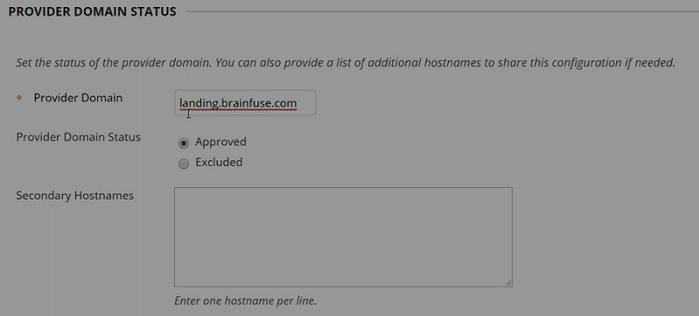
i. Provider Domain: landing.brainfuse.com
ii. Provider Domain Status: Approve
iii. Secondary Hostnames: n/a
b. Default Configuration:
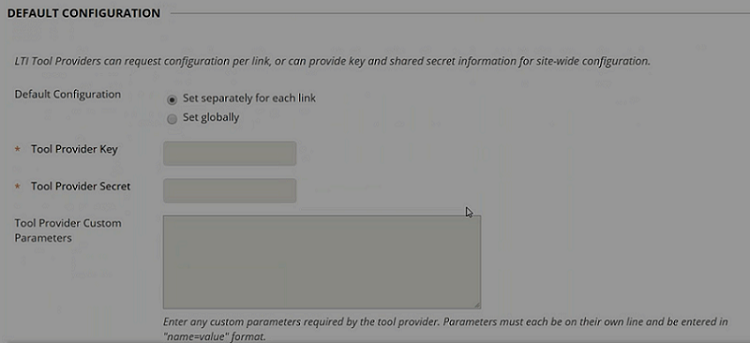
i. Default Configuration: Set Globally
ii. Tool Provider Key: Please enter value provided by Brainfuse
iii. Tool Provider Secret: Please enter value provided by Brainfuse
iv. Tool Provider Custom Parameters: n/a
c. Institution Policies:
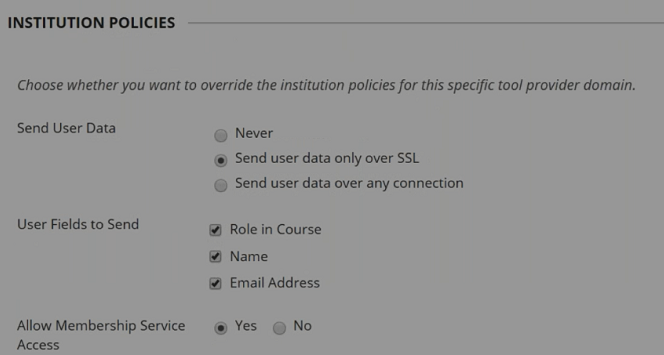
i. Send User Data: Send user data only over SSL
ii. User Fields to Send: Role in Course, Name, Email Address
iii. Allow Membership Service Access: Yes
d. Submit
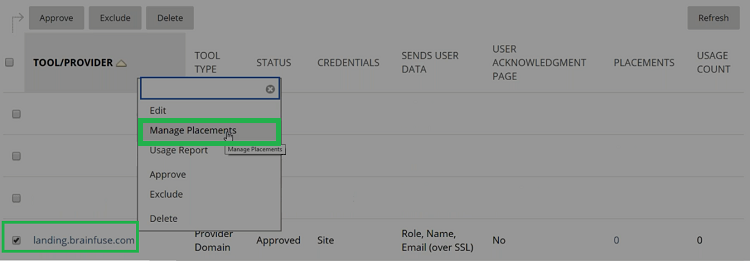
2. Once Provider Domain is registered, landing.brainfuse.com will appear under TOOL/PROVIDER. Select landing.brainfuse.com and Manage Placements and Select Create Placement:

a. Placement Information:
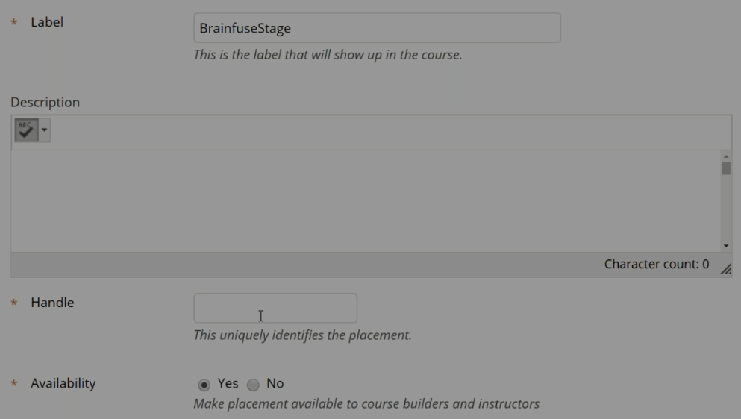
i. Label: Brainfuse Online Tutoring
ii. Description: Brainfuse Online Tutoring
iii. Handle: Brainfuse Online Tutoring
iv. Availability: Yes
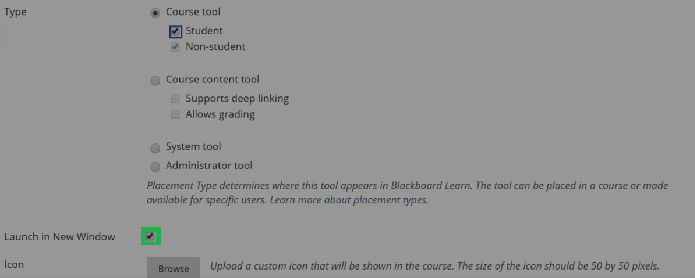
i. Type: Course Tool > Student and Non-Student
ii. Launch in New Window – Check (Please be sure to enable this)
iii. Icon: Please use the following icon for the tool:

b. Tool Provider Information:
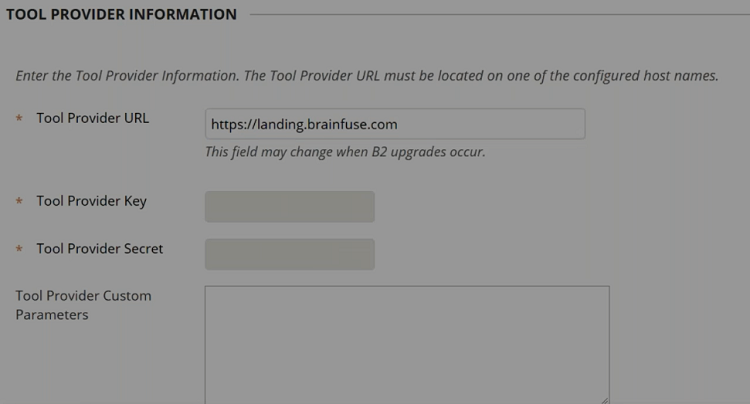
i. Tool Provider URL: https://landing.brainfuse.com
ii. Tool Provider Key: (Autofilled from Tool Provider Domain)
iii. Tool Provider Secret: (Autofilled from Tool Provider Domain)
a. Submit: Brainfuse tool will now appear in all courses within Blackboard Tools Menu once submit is selected.
3. To test and confirm that set-up is complete, go into any course and select “Tools” on left-hand side menu:
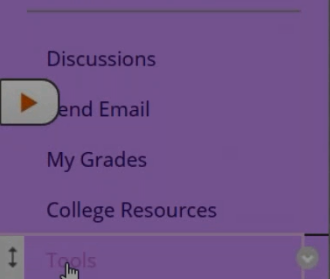
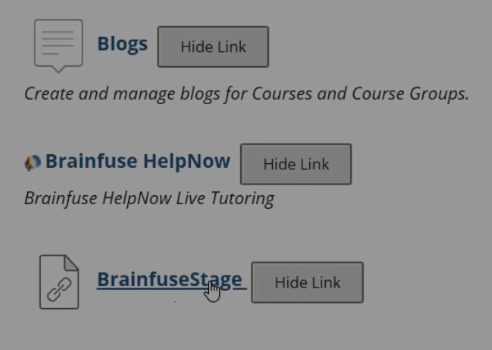
a. Select Brainfuse from Course Tools
b. When launched, the user will be single signed-on. A Brainfuse account will be created for the student for your Brainfuse Instance. Your institution's logo should also appear at the top of the page.
Questions?

 1-866-272-4638